 Posted by Written by: Tonerworld on Mar 19, 2026
Printing issues can be frustrating—especially when you’re trying to produce professional documents for work or home use. One common problem many users encounter is streaks, lines, or faded marks on printed pages. Understanding why this happens and how to fix it can save time, money, and stress.
Here’s a step-by-step guide to troubleshooting and preventing print quality issues.
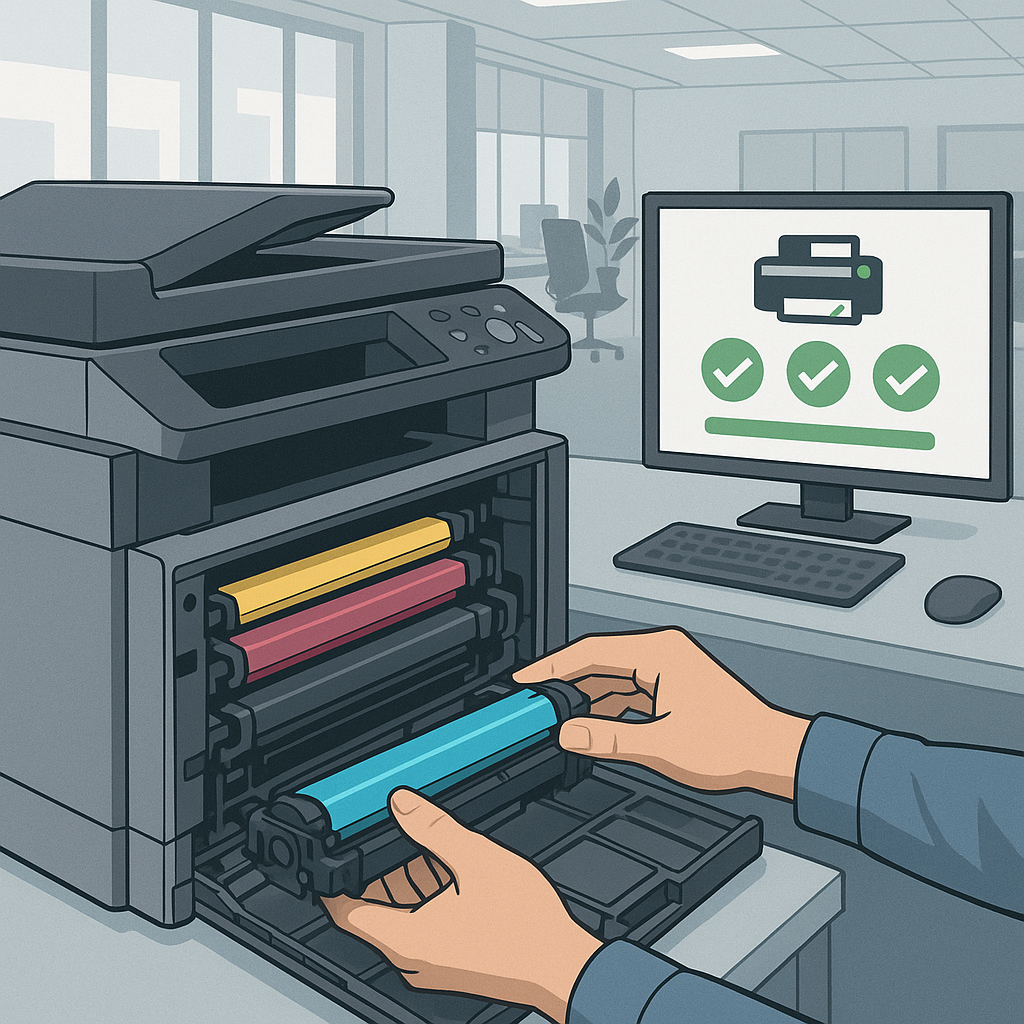
1. Check Your Toner Cartridge
The most common cause of streaks or faded prints is a toner cartridge that is low, damaged, or improperly installed.
-
Low toner: Even if your printer isn’t showing a “low toner” warning, the cartridge may be nearing the end of its life.
-
Damage or defects: Streaks can result from uneven toner distribution.
-
Improper installation: Ensure the cartridge is seated correctly; a misaligned cartridge can cause uneven printing.
Using high-quality compatible toner, such as Hyperion compatible cartridges from Tonerworld, can reduce the risk of streaks and other print defects while saving money compared to OEM cartridges.
2. Inspect the Drum or Imaging Unit
Some printers, especially laser models, use a drum or imaging unit to transfer toner to the paper. Over time, the drum can wear out or get dirty, leaving lines or faded patches on printed pages.
-
Check your printer’s manual for instructions on inspecting and cleaning the drum.
-
Replace the drum if it shows visible wear.
-
Many Tonerworld-compatible toner kits include high-quality drums or imaging units that maintain consistent print quality.
3. Clean the Printer Internals
Dust, paper fibers, or residual toner inside the printer can cause streaking. Cleaning your printer regularly helps maintain print quality.
-
Use a soft, lint-free cloth to wipe accessible areas.
-
Avoid harsh chemicals; use manufacturer-approved cleaning wipes if necessary.
-
Some printers offer an automatic cleaning cycle—run it to help resolve minor streaking issues.
4. Check Paper Quality
Poor-quality or damp paper can absorb toner unevenly, leading to faded areas or streaks.
-
Use paper recommended by the printer manufacturer.
-
Store paper in a cool, dry place to prevent moisture absorption.
-
Avoid mixing different paper types in the same print job.
5. Adjust Printer Settings
Sometimes the issue isn’t hardware—it’s settings.
-
Check print density or quality settings. Draft or economy modes can produce lighter, uneven prints.
-
For critical documents, switch to standard or high-quality mode.
6. Partner With Tonerworld for Reliable Printing
Many print quality issues stem from using low-quality toner cartridges. Tonerworld provides:
-
Over 8,000 printer supply products
-
Trusted Hyperion compatible toner and OEM options
-
Expert guidance to match cartridges to your printer model
-
Fast, free shipping from our 60,000 sq. ft. Connecticut distribution center
Using high-quality compatible toner ensures consistent print performance and reduces the chances of streaking or faded marks.
The Bottom Line
Streaks or faded marks on printed pages are frustrating, but they are usually easy to fix.
-
Inspect the toner cartridge
-
Check the drum or imaging unit
-
Clean the printer
-
Use quality paper
-
Adjust settings
With reliable toner and a few proactive steps, your printer can consistently produce sharp, professional-quality pages.