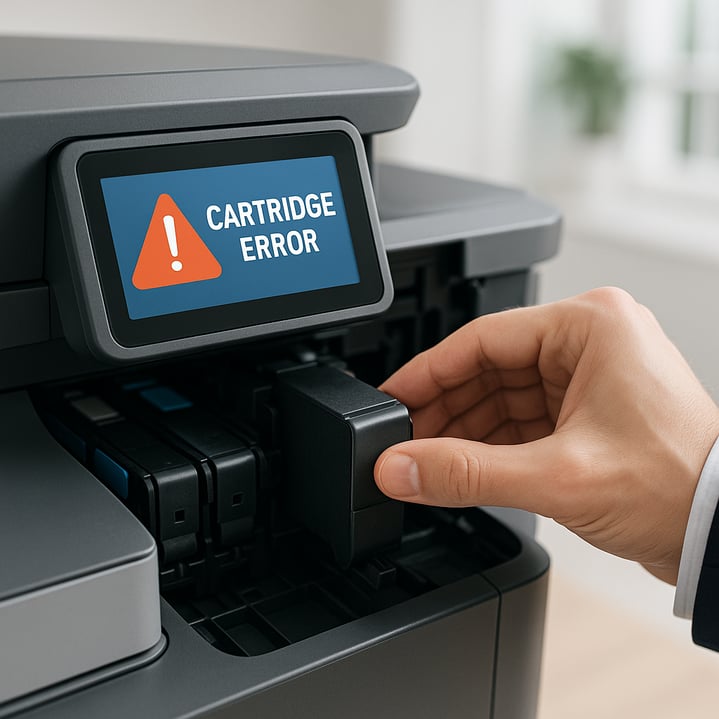
Encountering a "cartridge not recognized" error can halt your office productivity instantly, but understanding the root causes and implementing proven troubleshooting methods can get your printing operations back on track quickly.
Understanding the Cartridge Recognition Error and Its Impact on Office Operations
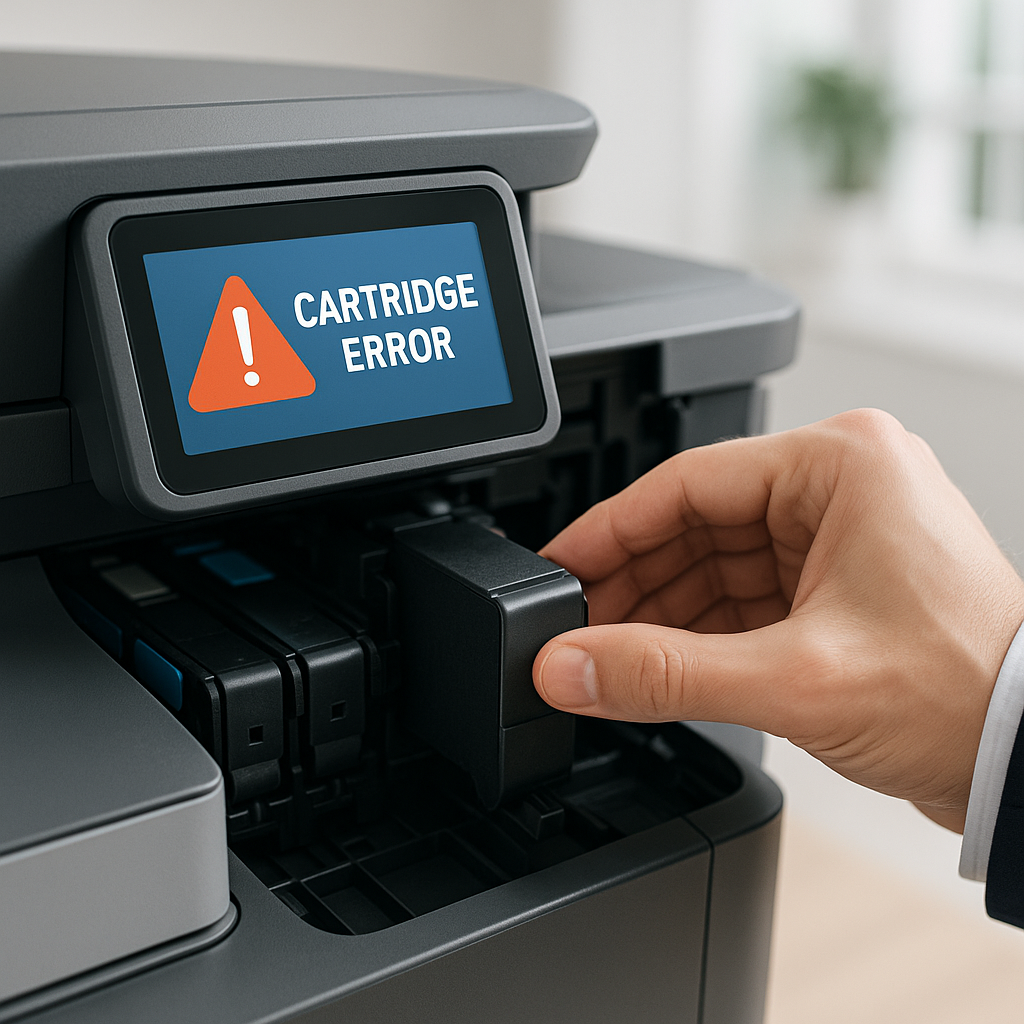
Few things disrupt workflow quite like walking to your office printer, expecting to collect important documents, only to find a blinking error message: "Cartridge Not Recognized." This frustrating scenario affects countless offices daily, causing delays in critical document production, missed deadlines, and unnecessary stress. Whether you're managing a small business office or overseeing a larger enterprise printing operation, toner cartridge recognition errors can significantly impact productivity and operational efficiency.
When your printer fails to recognize a toner cartridge, it's essentially unable to communicate with the consumable component that makes printing possible. This communication breakdown prevents the device from accessing ink or toner levels, tracking page counts, and ultimately, producing prints. The result is downtime that can range from a few minutes to several hours, depending on the root cause and your troubleshooting approach. Understanding why these errors occur and how to resolve them quickly is essential for maintaining seamless office operations and keeping your document management systems running smoothly.
Common Causes Behind Cartridge Recognition Failures
Several factors can trigger the dreaded "cartridge not recognized" message on your printer display. One of the most common culprits is improper installation. When replacing toner cartridges, protective seals, tape, or clips must be completely removed, and the cartridge must be seated correctly in its designated slot. Even a slight misalignment can prevent the electrical contacts from connecting properly, resulting in recognition failure.
Dirty or obstructed electrical contacts represent another frequent cause. The small metallic contact points on both the cartridge and inside the printer can accumulate dust, paper residue, or toner particles over time. These contaminants create barriers that interfere with the electronic communication between components. Additionally, firmware incompatibility issues can arise when printer manufacturers release updates that may not immediately recognize third-party or remanufactured cartridges, even if those cartridges are high-quality alternatives.
Physical damage to either the cartridge chip or the printer's sensor mechanisms can also trigger recognition errors. Cartridges that have been dropped, improperly stored, or exposed to extreme temperatures may develop chip malfunctions. Similarly, worn printer sensors or outdated firmware can fail to properly read cartridge information, leading to false error messages even when the cartridge is perfectly functional.
Step-by-Step Troubleshooting Methods to Resolve Cartridge Errors
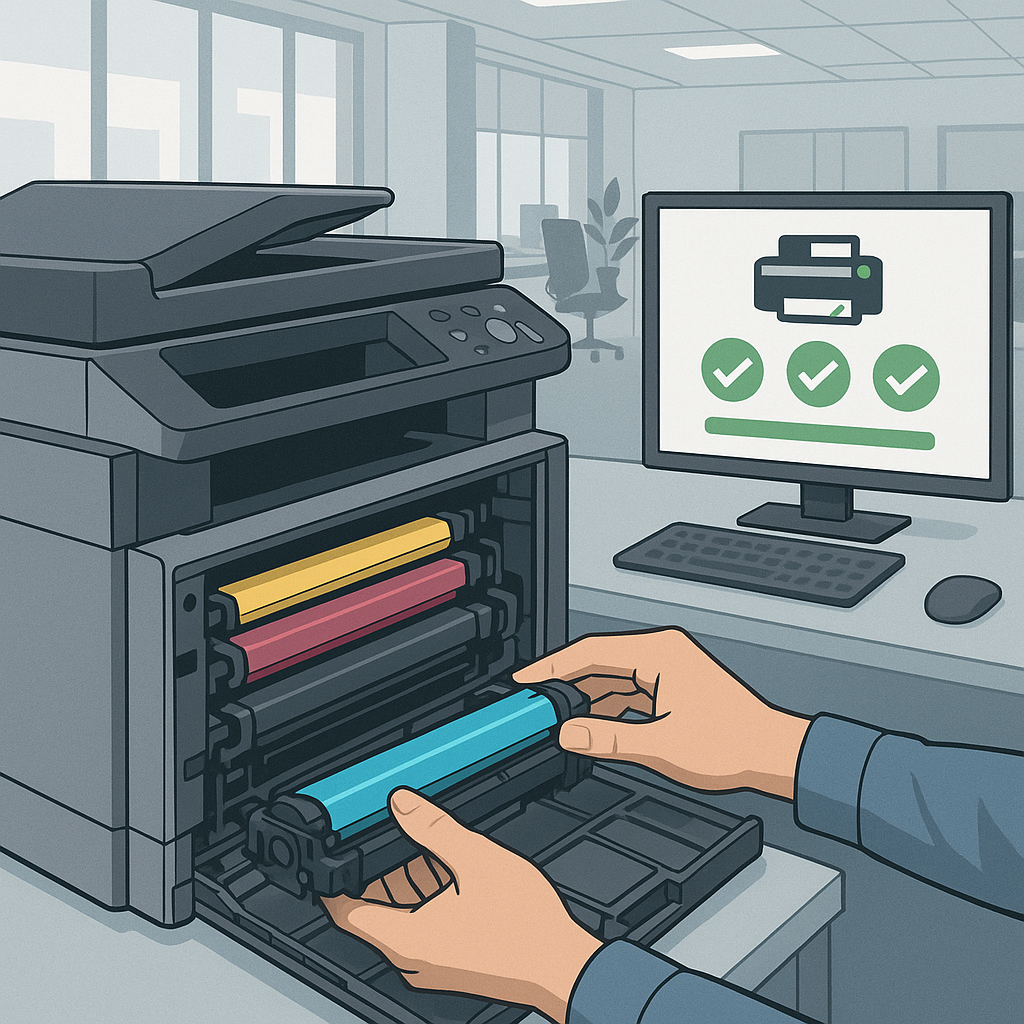
When faced with a cartridge recognition error, start with the simplest solution: remove and reinstall the cartridge. Power off your printer completely, open the cartridge access door, and carefully remove the problematic cartridge. Inspect it thoroughly for any remaining protective materials—sealing tape, plastic clips, or orange pull-tabs that may have been overlooked during initial installation. Examine the chip area for visible damage or debris, then firmly reinstall the cartridge, ensuring you hear a definitive click indicating proper seating.
If reinstallation doesn't resolve the issue, proceed to clean the electrical contacts. Using a clean, lint-free cloth slightly dampened with distilled water, gently wipe the metallic contact points on the cartridge. Allow it to dry completely before cleaning the corresponding contacts inside the printer cavity using the same method. This simple maintenance step eliminates contaminants that frequently cause communication failures between components.
For persistent errors, perform a printer power cycle reset. Turn off the printer, unplug it from the power source, and wait 60 seconds. This allows the printer's memory to clear and resets internal sensors. While the printer is unplugged, press and hold the power button for 15 seconds to discharge any residual power. Reconnect the power cable, turn on the printer, and reinstall the cartridge. Many recognition errors resolve through this comprehensive reset process. If the error continues, check the manufacturer's website for available firmware updates, as newer versions often include improved cartridge recognition protocols for a wider range of compatible products.
Preventive Measures to Avoid Future Cartridge Recognition Issues
Preventing cartridge recognition errors begins with proper storage and handling practices. Store replacement cartridges in their original packaging in a cool, dry environment away from direct sunlight and temperature extremes. When handling cartridges during installation, avoid touching the chip area or electrical contacts, as oils from skin can interfere with connectivity. Always follow the manufacturer's installation instructions precisely, removing all protective materials in the correct sequence.
Establishing a regular maintenance schedule for your printing equipment significantly reduces recognition errors. Periodic cleaning of printer interiors, particularly the cartridge bay area, prevents dust and debris accumulation that causes contact issues. Keep your printer firmware updated to ensure compatibility with current cartridge technologies and to benefit from manufacturer improvements in recognition algorithms.
Sourcing quality consumables from reputable suppliers is perhaps the most effective preventive measure. At Tonerworld, we understand that reliable cartridge performance is essential for uninterrupted office operations. Our extensive selection of compatible and remanufactured cartridges undergoes rigorous quality testing to ensure proper chip functionality and seamless recognition across diverse printer models. By choosing tested, quality-assured cartridges from trusted suppliers, you minimize the risk of compatibility issues while maintaining cost-effective printing operations.
When to Seek Professional Service and Support for Persistent Printer Problems
While many cartridge recognition errors can be resolved through basic troubleshooting, certain symptoms indicate the need for professional intervention. If you've exhausted all troubleshooting steps—reinstallation, contact cleaning, power cycling, and firmware updates—and the error persists across multiple cartridges, your printer may have developed a hardware fault requiring technical service. Internal sensor failures, damaged circuit boards, or worn contact mechanisms within the printer typically require professional diagnosis and repair.
Persistent recognition errors that occur immediately after firmware updates may indicate compatibility issues that require manufacturer support. Additionally, if your printer displays recognition errors with genuine manufacturer cartridges but accepts third-party alternatives (or vice versa), this inconsistency suggests internal calibration problems best addressed by qualified technicians. Don't hesitate to contact your printer manufacturer's support team or a certified service provider when DIY solutions prove ineffective.
At Tonerworld, we're committed to supporting your complete printing needs beyond just supplying quality consumables. Our knowledgeable team can provide guidance on cartridge compatibility, troubleshooting assistance, and recommendations for maintaining optimal printer performance. When you're ready to stock up on reliable, recognition-error-free toner cartridges, explore our comprehensive selection designed to keep your office printing operations running smoothly. Visit Tonerworld today to discover quality cartridges backed by expert support—because your productivity shouldn't be held hostage by preventable printer errors.