Discover expert troubleshooting solutions to resolve common printer errors that occur after toner cartridge replacement and get your office equipment back to peak performance quickly.
Understanding Why Printer Errors Occur After Toner Replacement
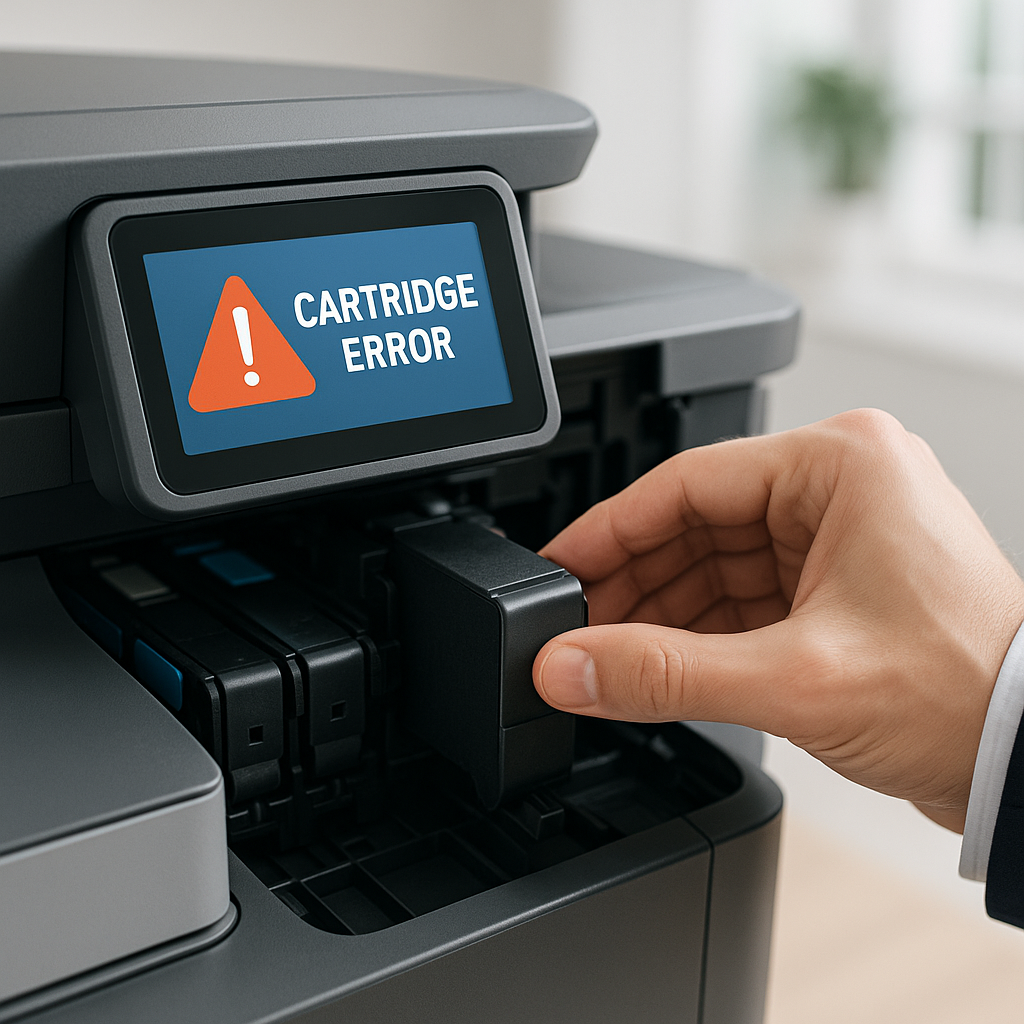
Replacing a toner cartridge should be a straightforward process, but sometimes your printer responds with frustrating error messages instead of resuming normal operation. Understanding why these errors occur is the first step toward resolving them quickly and minimizing downtime in your home office or business environment.
Most printer errors after toner replacement stem from one of three primary causes: communication issues between the cartridge chip and printer sensors, protective seals or packaging materials that weren't fully removed, or compatibility concerns with the replacement cartridge. Modern printers use sophisticated sensor systems and microchips embedded in toner cartridges to monitor ink levels, authenticate cartridges, and maintain print quality standards. When these systems fail to communicate properly, your printer may display 'cartridge not recognized,' 'incompatible cartridge,' or generic error codes.
At Tonerworld, we understand that these errors can be particularly concerning when you've just invested in a replacement cartridge. That's why we rigorously test our compatible toner cartridges to ensure they meet OEM specifications and communicate seamlessly with your printer's systems. Our quality assurance process includes chip programming verification and multi-point compatibility testing across major printer brands including HP, Brother, Canon, Epson, and Lexmark. When you purchase from Tonerworld in Middletown, CT, you're getting cartridges engineered to minimize installation errors and maximize first-time success rates, backed by our commitment to customer satisfaction and technical support.
Essential Steps to Reset Your Printer and Clear Error Messages
When faced with a printer error after replacing your toner cartridge, performing a proper reset sequence is often the most effective initial troubleshooting step. This process clears temporary system errors and allows your printer to re-detect the new cartridge with a fresh start. Begin by turning off your printer using the power button and waiting for all indicator lights to extinguish completely. Next, unplug the power cable from both the printer and the wall outlet—this step is crucial as it ensures a complete power cycle rather than just entering standby mode.
Wait approximately 60 seconds before reconnecting the power cable. This waiting period allows the printer's internal capacitors to fully discharge and the system memory to clear. During this time, you can also press and hold the power button for 15-20 seconds while the printer is unplugged to ensure complete discharge. After reconnecting the power and turning the printer back on, allow it to complete its full startup sequence, including any calibration routines or diagnostic checks it performs automatically.
For persistent errors, consult your printer's user manual for model-specific reset procedures. Many printer models have hidden diagnostic menus accessed through specific button combinations during startup. If error messages continue after a power reset, check your printer's display panel or management software for specific error codes. Document these codes before contacting support, as they provide valuable diagnostic information. Tonerworld's technical support team is experienced in interpreting these codes across multiple printer brands and can guide you through advanced reset procedures specific to your equipment, ensuring you get back to productive printing quickly.
Verifying Proper Toner Cartridge Installation and Compatibility
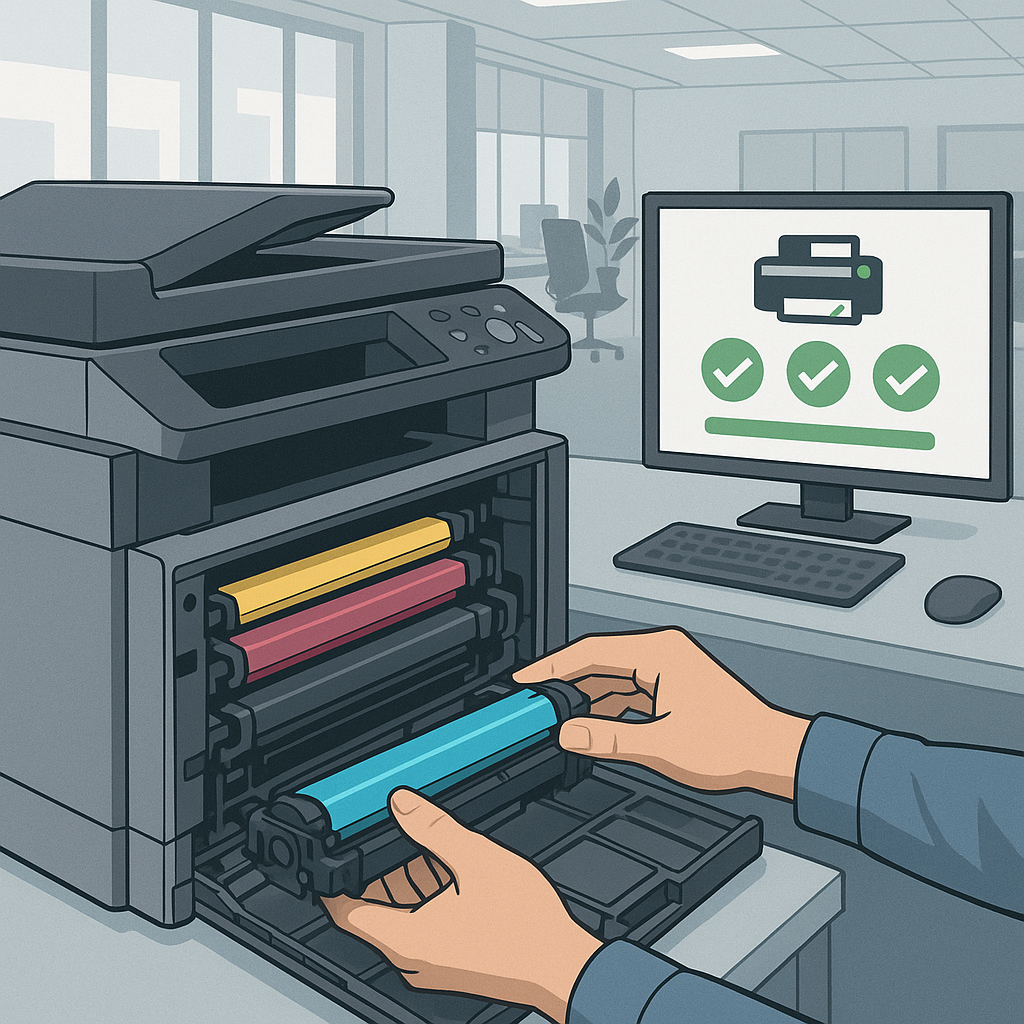
Improper installation is surprisingly common and accounts for a significant percentage of post-replacement printer errors. Even experienced users occasionally overlook critical installation steps, particularly when switching between different cartridge models or working with unfamiliar printer configurations. Start your verification process by opening the printer access door and carefully removing the newly installed toner cartridge. Examine the cartridge thoroughly for any remaining protective materials—look for orange or blue plastic pull-tabs, foam padding, protective tape covering the drum unit, or sealing strips across the toner reservoir openings.
Manufacturers use these protective elements to prevent toner spillage and drum damage during shipping, but they must be completely removed before installation. Pay special attention to the chip contacts—small gold or copper-colored pins on the cartridge that interface with corresponding contacts in the printer. These contacts should be clean, free from residue, and properly aligned. Gently wipe them with a lint-free cloth if you notice any debris or oxidation. Similarly, inspect the printer's internal cartridge contacts and clean them if necessary using compressed air or a soft, dry cloth.
Compatibility verification is equally important for successful operation. While OEM cartridges are guaranteed to work with specific printer models, compatible cartridges require careful matching to ensure proper fit and functionality. Tonerworld specializes in providing high-quality compatible toner cartridges that meet or exceed OEM specifications at a fraction of the cost. Our product listings include detailed compatibility information, and our experienced staff can verify compatibility for your specific printer model before you purchase. We maintain extensive cross-reference databases covering thousands of printer models and cartridge types, ensuring you receive the exact cartridge your equipment requires.
When you choose Tonerworld's compatible toner solutions, you're accessing professional-grade products with comprehensive compatibility guarantees, giving you confidence that your investment will deliver reliable performance without the premium OEM pricing.
Advanced Troubleshooting Techniques for Persistent Printer Issues
When basic troubleshooting steps fail to resolve printer errors, advanced diagnostic techniques become necessary. Begin by accessing your printer's firmware and driver settings through your computer's control panel or printer management software. Outdated firmware can cause compatibility issues with newer cartridge chip technologies, even when using OEM-equivalent compatible cartridges. Visit your printer manufacturer's support website to check for firmware updates specific to your model, and follow their installation instructions carefully. Firmware updates often include improved cartridge recognition algorithms and expanded compatibility profiles that resolve persistent error conditions.
Driver conflicts represent another common source of post-replacement errors, particularly in office environments where multiple users or networked printing configurations exist. Uninstall your current printer driver completely using your operating system's device management tools, then download and install the latest driver version directly from the manufacturer's website rather than using generic drivers or outdated installation media. For networked printers, verify that all workstations accessing the printer have consistent, up-to-date driver installations to prevent communication errors that may manifest as cartridge-related problems.
If errors persist after firmware and driver updates, consider performing a full printer diagnostic cycle using the manufacturer's built-in test functions. Most modern office printers include diagnostic modes that test cartridge communication, sensor functionality, and print quality independently. Access these functions through the printer's control panel menu—typically under 'Tools,' 'Maintenance,' or 'Diagnostics' sections. The diagnostic results can pinpoint whether issues originate from the cartridge, printer sensors, or communication pathways. Should these advanced techniques fail to resolve your issue, contact Tonerworld's technical support team. We've accumulated decades of experience troubleshooting complex printer-cartridge interactions across commercial and home office environments. Our support specialists can walk you through manufacturer-specific diagnostic procedures, interpret error codes, and in some cases, arrange cartridge replacement if a defect is identified, ensuring your office technology operates at peak performance with minimal disruption to your productivity.
Preventive Maintenance Strategies to Minimize Future Toner-Related Errors
Implementing a proactive maintenance schedule significantly reduces the likelihood of encountering cartridge-related errors and extends your printer's operational lifespan. Establish a monthly cleaning routine that includes removing toner cartridges and using compressed air to clear dust, paper particles, and toner residue from the cartridge bay, contact points, and internal paper path. These contaminants accumulate over time and interfere with proper cartridge seating and sensor communication. When cleaning, avoid touching the drum surface on toner cartridges or printer imaging units, as oils from skin contact can cause print quality defects and premature component failure.
Environmental factors play a crucial role in toner cartridge performance and error prevention. Store replacement cartridges in their original packaging in a cool, dry location away from direct sunlight and extreme temperature fluctuations. Ideal storage conditions range between 50-80°F with relative humidity between 20-80%. Exposure to heat, cold, or humidity can compromise toner consistency, chip functionality, and seal integrity, leading to installation problems when you eventually use the cartridge. When you're ready to install a new cartridge, allow it to acclimate to room temperature for at least two hours if it has been stored in significantly different conditions.
Documentation and inventory management represent often-overlooked aspects of preventive maintenance. Maintain records of cartridge installation dates, page counts at replacement, and any errors encountered. This information helps identify patterns that may indicate developing equipment issues before they cause significant downtime. Purchase toner cartridges from reliable suppliers who guarantee compatibility and quality—this is where Tonerworld excels.
Our compatible cartridges undergo rigorous quality control testing that includes extended printing trials, chip authentication verification, and yield validation to ensure they deliver consistent performance throughout their lifecycle. We also provide detailed installation guides and proactive customer support to help you avoid common pitfalls. By combining quality compatible cartridges from Tonerworld with regular maintenance practices and proper storage procedures, you create a comprehensive strategy that minimizes printer errors, reduces total cost of ownership, and ensures your office technology remains reliable and productive for years to come.
Explore our online inventory to discover how Tonerworld's expertise, quality products, and customer-focused service can transform your printing experience while delivering substantial savings compared to OEM alternatives.